Building a Portfolio with Next.js and Notion API using ISR
Next.jsNotion APIISRPortfolio

Step-by-step guide to building a modern portfolio using Next.js and Notion API with Incremental Static Regeneration (ISR).

Posted by Felipe Giraldo


In this post, I want to show you how I built my personal portfolio using Next.js 16, Notion as a headless CMS, and Incremental Static Regeneration (ISR).

The idea was simple: have a fast, easy-to-maintain site that allows me to update content without touching code every time.

This approach is what I currently use in my portfolio and in several client projects.


What We're Building

A personal portfolio with the following features:

  • Next.js 16 using App Router
    • Notion API as content manager
      • Incremental Static Regeneration (ISR)
        • TypeScript
          • Tailwind CSS
            • Deployment on Vercel

              Prerequisites

              To follow this tutorial you need:

              • Node.js 18 or higher
                • pnpm (recommended), although npm or yarn also work
                  • A Notion account
                    • A Vercel account

                      Step 1: Initial project setup

                      I'll start with a template that already has the base project structure.

                      Clone the repository

                      git clone https://github.com/astrxnomo/portfolio-nextjs-notion.git
                      cd portfolio-nextjs-notion
                      pnpm install

                      Before running the project, it's necessary to configure Notion and environment variables.


                      Step 2: Using Notion as CMS

                      One of the reasons I use Notion is because it allows me to update content very comfortably, without additional admin panels.

                      Create the integration in Notion

                      1. Go to Notion Integrations
                        1. Create a new integration named Portfolio CMS
                          1. Configure it as Internal
                            1. Copy the integration token

                              This token will be our API access key:

                              NOTION_API_KEY=your_integration_token

                              Duplicate the databases

                              To not create everything from scratch, you can duplicate the template with the pre-configured databases:

                              Next.js + Notion Template
                              astrxnomo.notion.site/Next-js-16-Notion-API-Databases-2da23bce200280069c63e34ad9f5de69?pvs=74

                              Once duplicated:

                              1. Open the page in your workspace
                                1. In the three dots (top right), enter Connections
                                  1. Connect the Portfolio CMS integration

                                    By doing this, the integration will have access to all databases within that page.


                                    Configure the update button (manual ISR)

                                    In production, the site doesn't update automatically. I prefer having total control over when to publish changes, so I use a button in Notion.

                                    1. In the duplicated page, configure the Update button
                                      1. Make sure it has the Send webhook action
                                        1. Configure the URL:
                                            https://your-domain.vercel.app/api/revalidate
                                        2. Add the custom header:
                                            X-Notion-Secret: YOUR_WEBHOOK_SECRET

                                        You can generate the secret here: Online UUID Generator Tool

                                        Image

                                        In local development, this step is not necessary.


                                        Step 3: Environment variables

                                        Get the database IDs

                                        For each database:

                                        1. Open it in Notion
                                          1. Go to Settings
                                            1. Enter Manage data sources
                                              1. Copy the Source ID
                                                Image
                                                Image

                                                Create a .env.local file with the following:

                                                NOTION_API_KEY=your_integration_token
                                                NOTION_ABOUT_DB_ID=your_about_database_id
                                                NOTION_EXPERIENCE_DB_ID=your_experience_database_id
                                                NOTION_PROJECTS_DB_ID=your_projects_database_id
                                                NOTION_WEBHOOK_KEY=your_webhook_secret

                                                Run the project

                                                pnpm dev

                                                Then open http://localhost:3000.


                                                Step 4: Load your content in Notion

                                                About

                                                Here I place personal information:

                                                • Name
                                                  • Bio
                                                    • Location
                                                      • Email
                                                        • Networks
                                                          • Skills

                                                            Experience

                                                            I use this database for my work experience:

                                                            • Company
                                                              • Role
                                                                • Dates
                                                                  • Description
                                                                    • External link

                                                                      Projects

                                                                      Here I add the projects I want to showcase:

                                                                      • Name
                                                                        • Description
                                                                          • Images
                                                                            • Demo and repository
                                                                              • Technologies

                                                                                Step 5: Deploy to Vercel

                                                                                1. Upload the project to GitHub
                                                                                  1. Import it into Vercel
                                                                                    1. Configure environment variables

                                                                                      The variables are the same as in .env.local:

                                                                                      NOTION_API_KEY=your_integration_token
                                                                                      NOTION_ABOUT_DB_ID=your_about_database_id
                                                                                      NOTION_EXPERIENCE_DB_ID=your_experience_database_id
                                                                                      NOTION_PROJECTS_DB_ID=your_projects_database_id
                                                                                      NOTION_WEBHOOK_KEY=your_webhook_secret

                                                                                      How ISR works in this project

                                                                                      The site is generated statically and only updates when I decide.

                                                                                      export default async function HomePage() {
                                                                                        const { about, experience, projects } = await getData()
                                                                                      }
                                                                                      

                                                                                      What I gain with this approach

                                                                                      • Better performance
                                                                                        • Pages served from CDN
                                                                                          • Complete SEO
                                                                                            • Total control over publications

                                                                                              When content updates

                                                                                              • Locally: every change in Notion reflects automatically
                                                                                                • In production: only when I press the Update button in Notion

                                                                                                  Customization

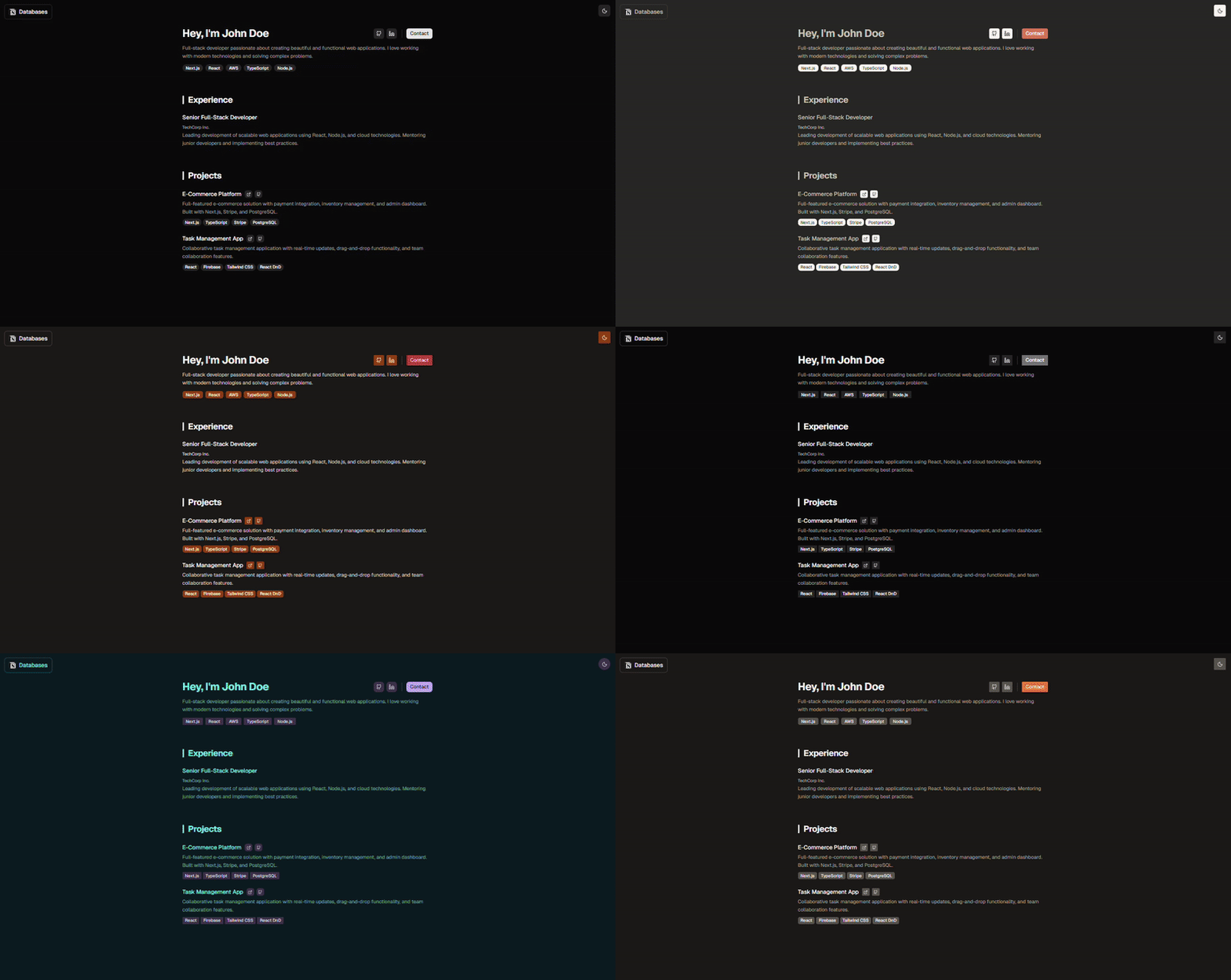
                                                                                                  Styles and colors

                                                                                                  Styles are centralized in app/globals.css.

                                                                                                  You can also use TweakCN to adjust the Tailwind theme
                                                                                                  Image

                                                                                                  Add new sections

                                                                                                  When I need a new section:

                                                                                                  1. I create a new database in Notion
                                                                                                    1. I add the fetch in lib/data/
                                                                                                      1. I create the component in components/sections/

                                                                                                        Common problems

                                                                                                        Invalid API key

                                                                                                        • Review the token
                                                                                                          • Confirm the integration is Internal

                                                                                                            Database not found

                                                                                                            • Review the IDs
                                                                                                              • Make sure the database is connected to the integration

                                                                                                                Conclusion

                                                                                                                This setup allows me to have a fast, clean, and easy-to-maintain portfolio, without depending on a traditional CMS.

                                                                                                                Notion becomes the admin panel and Next.js handles performance.

                                                                                                                It's a solid base that I also use for blogs, landings, and client sites.

                                                                                                                In future posts I can show how to:

                                                                                                                • Convert this into a complete blog
                                                                                                                  • Handle multiple languages with Notion
                                                                                                                    • Use this architecture for commercial projects

                                                                                                                      If you're interested in any of those topics, let me know.


                                                                                                                      © 2026 Felipe Giraldo